AajTakDNA • PDF Studio Pro Android Tutorial
The most useful PDF is the one you can find, open and deliver without confusion. In this AajTakDNA guide, we move beyond creating documents and focus on keeping the right version, organizing files by purpose, protecting sensitive information and sharing them safely. PDF Studio Pro lists Android Save & Share features, but security and cloud backup behavior should not be assumed without checking the installed app. Official app details.
Before you begin: PDF Studio Pro is described on its official IndiaTVDNA page as currently available to eligible Google Play closed testers; public production availability has not yet been confirmed. Menus and features may differ by build, device and document type.
Create a simple and consistent naming system
Use names that explain the document rather than the time it was exported. For example, 2026-10-project-report-v2.pdf is easier to recognize than document(18).pdf. For personal paperwork, avoid placing sensitive ID numbers or full bank account information in a file name that may appear in notifications, search results or shared links. Put dates in an unambiguous YYYY-MM-DD format if your team uses them.
Create sensible groups for different document types
You may prefer directories or collections for study notes, work documents, receipts, applications and forms, depending on the Android storage options available to you. Keep source files separate from final exports when possible. A saved draft should not have the same name as a signed final document. Use built-in file management tools supported by your device and installed app, rather than assuming PDF Studio Pro offers cloud synchronization or folder features not listed publicly.
Save and verify every final PDF
- Choose the intended output location or Android share/save destination supported by the app.
- Give the document a clear, non-sensitive name.
- Complete the save/export operation and note the folder.
- Open the saved output instead of relying solely on the export message.
- Check the page count, images, important text and any document links.
- Confirm that the file is not an empty or partial export.
- For critical work, preserve a separate original and an authorized backup.
Share safely by email or Android apps
Before sharing, verify the recipient, the number of attachments and the final file name. Use an appropriate channel for the confidentiality level of the document. A share sheet can display many compatible apps, but those services have different policies. Once a document leaves the phone for an external service, its handling may no longer be controlled by the PDF application alone. Never send a complete identity document when a redacted or smaller extract is sufficient for a legitimate purpose.
File size versus readability
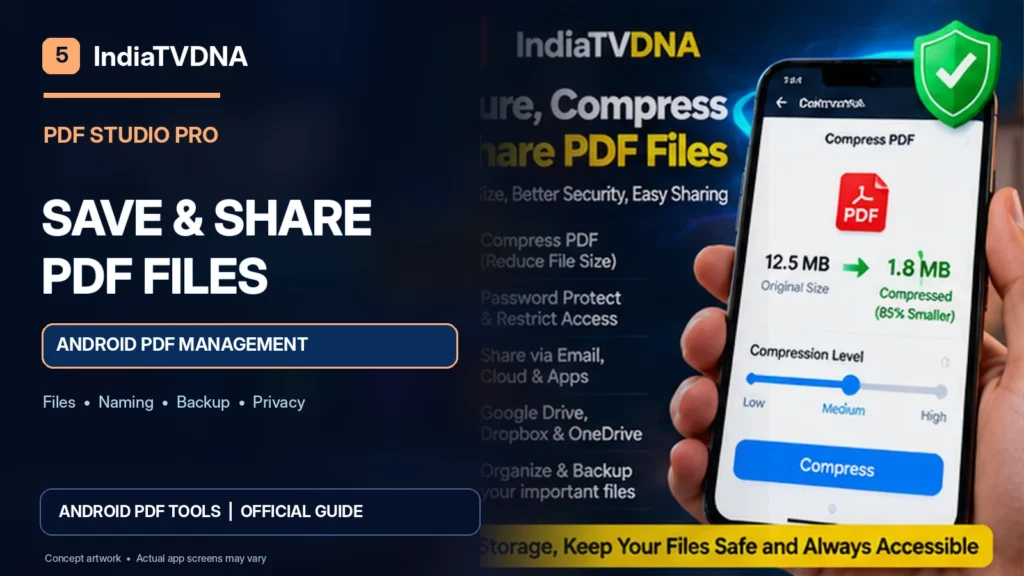
A photo-heavy PDF may be much larger than a text-based one. Reducing image dimensions or resolution can lower size at the cost of detail, so always inspect totals, signatures and small labels after a change. Do not infer that a PDF compressor, password-encryption tool or cloud restore exists in your app version unless it has been independently verified; use the device’s supported tools when a particular file operation is unavailable.
What to do when a file cannot be found
- Check the output destination shown during the save process.
- Use Android Files or the file picker to inspect likely storage locations.
- Look for a similarly named older export and verify which file is newest.
- Check app storage permissions and available free space.
- Repeat the export only after confirming whether the first operation actually succeeded.
Make a reliable study and office workflow
| Stage | Suggested action | Quality gate |
|---|---|---|
| Capture | Scan or choose a photo/document | Content is legible |
| Prepare | Review or edit supported elements | No lost pages |
| Save | Use descriptive versioned name | File reopens correctly |
| Share | Choose intended recipient | Right version sent |
| Retain | Keep authorized backup | Can locate it later |
Privacy and application availability
IndiaTVDNA’s official page says PDF Studio Pro contains advertisements and is currently in Google Play closed testing. Review the app’s privacy policy for current disclosures about advertising and any SDK handling. A document workflow being local does not by itself establish that no diagnostics or identifiers are processed by installed SDKs. Public Play availability will depend on production approval; check the official page for the latest status.
AajTakDNA document organization routine
Try a three-folder system for important documents: Working for drafts, Final for verified PDFs, and Archive for older versions. Put each file into the correct folder once it has been checked. A consistent filename such as 2026-10-invoice-v2.pdf is easier to recognize than repeated copies named document(3).pdf.
If you need to share a PDF for a college submission or an office request, open the specific final version first. Verify the title, page count, readable images and any signature sections. Choose a sharing app you trust and double-check the recipient. For documents containing private information, consider whether all pages need to be included, whether the receiving service retains uploads, and whether an expiry or access restriction is available.
A file shown in the app’s Recent list may not be backed up anywhere else. Save another verified copy using a storage location you control, and test restoration occasionally. Before removing the original from the phone, check that the backup opens and contains the same pages. Local saving and cloud synchronization are different functions; the public app listing should not be read as a guarantee of automatic cloud restore.
Frequently asked questions
Can I share a finished PDF from my Android phone?
Yes. Save & Share is an official PDF Studio Pro feature, using compatible Android apps.
Do files automatically back up to a cloud service?
The public product page does not establish automatic cloud backup. Use only verified backup options.
Why did a recipient see an outdated PDF?
The wrong version or file may have been sent; open and verify the exact attachment before sharing.
Should I delete every scanned original immediately?
No. Keep any original or backup required by your document process until the saved PDF has been checked.
Continue with AajTakDNA PDF Studio Pro tutorials
- PDF Studio Pro for Android: Complete PDF Reader, Scanner and Editor Guide
- How to Scan Documents to PDF on Android: Clear Multi-Page Results
- How to Convert Photos to PDF on Android: Images, Assignments and Receipts
- How to Edit and Save PDF Files on Android Without Losing Formatting
Check official IndiaTVDNA PDF Studio Pro app information
Learn more about the Android reader, document scanner, Photo to PDF, supported editing and Save & Share workflows on the official IndiaTVDNA PDF Studio Pro page. If you are an eligible closed tester, use the approved Google Play test link supplied through the official program.
Transparency: Features cited in this article come from the public IndiaTVDNA product page. Illustrations are conceptual and do not represent independently verified screenshots, benchmarks or promises of functionality on every file. No conversion-quality, OCR-accuracy or public-release guarantee is claimed.